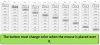
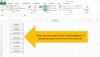
Private Sub Cities_MouseMove(ByVal Button As Integer, ByVal Shift As Integer, ByVal X As Single, ByVal Y As Single)
For Each btn In Me.Controls
  If TypeName(btn) = "CommandButton" Then If btn.BackColor <> -2147483633 Then btn.BackColor = -2147483633
Next btn
End Sub
Private Sub UserForm_MouseMove(ByVal Button As Integer, ByVal Shift As Integer, ByVal X As Single, ByVal Y As Single)
For Each btn In Me.Controls
  If TypeName(btn) = "CommandButton" Then If btn.BackColor <> -2147483633 Then btn.BackColor = -2147483633
Next btn
End Sub
Private Sub City1_MouseMove(ByVal Button As Integer, ByVal Shift As Integer, ByVal X As Single, ByVal Y As Single)
City1.BackColor = 12648447
For Each btn In Me.Controls
  If Not btn Is City1 Then
    If TypeName(btn) = "CommandButton" Then If btn.BackColor <> -2147483633 Then btn.BackColor = -2147483633
  End If
Next btn
End Sub
Private Sub City2_MouseMove(ByVal Button As Integer, ByVal Shift As Integer, ByVal X As Single, ByVal Y As Single)
City2.BackColor = 12648447
For Each btn In Me.Controls
  If Not btn Is City2 Then
    If TypeName(btn) = "CommandButton" Then If btn.BackColor <> -2147483633 Then btn.BackColor = -2147483633
  End If
Next btn
End Sub
Private Sub City3_MouseMove(ByVal Button As Integer, ByVal Shift As Integer, ByVal X As Single, ByVal Y As Single)
City3.BackColor = 12648447
For Each btn In Me.Controls
  If Not btn Is City3 Then
    If TypeName(btn) = "CommandButton" Then If btn.BackColor <> -2147483633 Then btn.BackColor = -2147483633
  End If
Next btn
End Sub
Private Sub City4_MouseMove(ByVal Button As Integer, ByVal Shift As Integer, ByVal X As Single, ByVal Y As Single)
City4.BackColor = 12648447
For Each btn In Me.Controls
  If Not btn Is City4 Then
    If TypeName(btn) = "CommandButton" Then If btn.BackColor <> -2147483633 Then btn.BackColor = -2147483633
  End If
Next btn
End Sub
Private Sub City5_MouseMove(ByVal Button As Integer, ByVal Shift As Integer, ByVal X As Single, ByVal Y As Single)
City5.BackColor = 12648447
For Each btn In Me.Controls
  If Not btn Is City5 Then
    If TypeName(btn) = "CommandButton" Then If btn.BackColor <> -2147483633 Then btn.BackColor = -2147483633
  End If
Next btn
End Sub
Private Sub City6_MouseMove(ByVal Button As Integer, ByVal Shift As Integer, ByVal X As Single, ByVal Y As Single)
City6.BackColor = 12648447
For Each btn In Me.Controls
  If Not btn Is City6 Then
    If TypeName(btn) = "CommandButton" Then If btn.BackColor <> -2147483633 Then btn.BackColor = -2147483633
  End If
Next btn
End Sub
Private Sub City7_MouseMove(ByVal Button As Integer, ByVal Shift As Integer, ByVal X As Single, ByVal Y As Single)
City7.BackColor = 12648447
For Each btn In Me.Controls
  If Not btn Is City7 Then
    If TypeName(btn) = "CommandButton" Then If btn.BackColor <> -2147483633 Then btn.BackColor = -2147483633
  End If
Next btn
End Sub
Private Sub City8_MouseMove(ByVal Button As Integer, ByVal Shift As Integer, ByVal X As Single, ByVal Y As Single)
City8.BackColor = 12648447
For Each btn In Me.Controls
  If Not btn Is City8 Then
    If TypeName(btn) = "CommandButton" Then If btn.BackColor <> -2147483633 Then btn.BackColor = -2147483633
  End If
Next btn
End Sub
Private Sub City9_MouseMove(ByVal Button As Integer, ByVal Shift As Integer, ByVal X As Single, ByVal Y As Single)
City9.BackColor = 12648447
For Each btn In Me.Controls
  If Not btn Is City9 Then
    If TypeName(btn) = "CommandButton" Then If btn.BackColor <> -2147483633 Then btn.BackColor = -2147483633
  End If
Next btn
End Sub